
in your Blackboard Course
You can add or delete students from your course on your own. Remember, the only official roster is your Banner roster. In order to keep your Blackboard roster matching, you can modify it yourself through these easy steps.
Viewing Your Roster
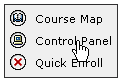
Click on the control panel.

Click on the List / Modify Users.
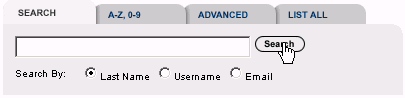
Do not type any names in the box. Simply click on Search.
Adding Students
Click on the control panel.

Click on the Enroll User link.
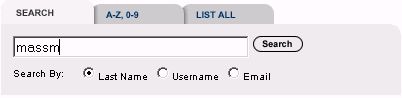
Fill in part or all of the last name of the student you want to add to the course and then click on the Search button.
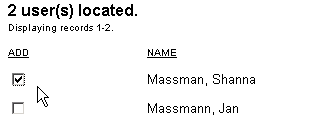
Any matching names NOT already enrolled in the course will appear. Click
the the box of the name you want. You can select more than one name at
a time. When you have the names you want, click the Submit bottom at the
lower right corner of the page.
If the name is not on the list, one of three reasons could be the problem:
- You misspelled the name when you typed it in. Solution: Try typing it in again.
- The student is already enrolled in the class. How to check this out? Go back to the control panel and click on List/Modify Users. Then, without filling in the box, click on the Search button. This will show you the roster.
- The name is not in the Blackboard data base. Solution: Contact the system administrator to have the name added. You do not have rights to add students to the system, just to your class from the system database.
Removing Students
Click on the control panel.

Click on Remove Users from Course
You have two options at this point. If you click search without entering a name, the entire course roster will appear. You can narrow the search by typing in part of the last name, just as described in step 8in the Adding Students section above. For this example, no names were typed in so Search produced the entire roster.
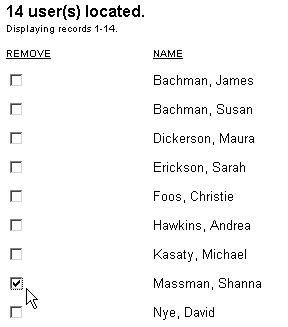
Click the box in front of the name you want to remove. You can remove multiple people at one time. Once you have the names to delete selected, click the Submit button at the lower right corner of the screen. Note that the total number enrolled will include you as the instructor, any people designated TA's, etc. Subtract this number from the total and you should have the same number of students as indicated in your Banner roster.