 |
Creating Durable Links to Articles in Blackboard |
A durable link is a clickable link in Blackboard that will send your students directly to the full text of an article in the library's database.
You may find it convenient to have three browser windows open as you create the durable link. The first is for these directions. The second would be open the library's online database. The third would be open Blackboard. You can use the icons in the taskbar to move from one to the other.
In a separate browser window, locate the article in the library database. There are tutorials on the CELT website for the steps to do this if you are not familiar with the database search engine.
Find the article you wish to add. For this example, the article was found in Academic Search Premier, a database in EBSCOhost. Only the lower section of the record is shown below:
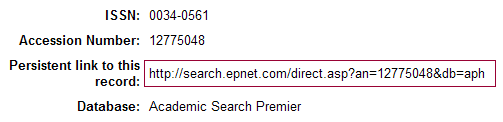
You are concerned with the information in the Persistent link area. You will use this information later in the process.
In a separate browser window, open Blackboard.
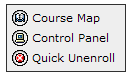 |
Open the control panel. |
| Click on Assignments since we are putting the link in this area. It could go in any of the content areas. |  |

If you want to put several articles together, create a folder first. Then go into the folder and place the durable links. In this example we are creating just one link, so click on External Link.
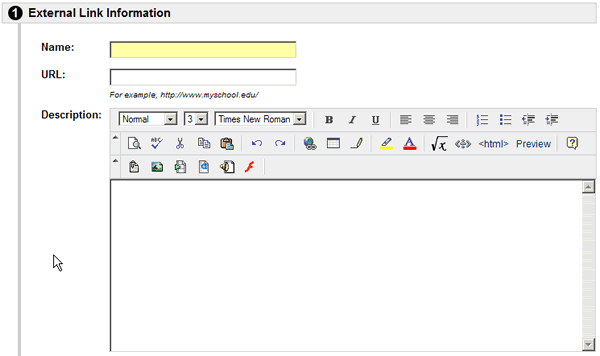
In the Name area shown in cream above, type in the name of the article.
In the URL area, type in http://library.cui.edu:2048/login?url= . This string, up to and including the equal sign, will tell the browser to first go to the CUI library and authenticate the user as having rights to view the material. Rights are given only to current students and faculty. You will be adding more to this string once you locate the persistent link in the database at the library.
Now refer to the link on the browser page in the library database as illustrated in step 2 above. Highlight the link and copy it to the clipboard. Now go back to the browser page for Blackboard and paste it at the END of the link you typed in, after the = sign, no spaces. For this article, the URL line would read:
http://library.cui.edu:2048/login?url=http://search.epnet.com/direct.asp?an=12775048&db=aph
In the Description area (see illustration in step 5 above), you can place a description of the article, directions as to what they should look for as they read, etc. When the form is complete for the link we are creating in this tutorial, it should look like this:
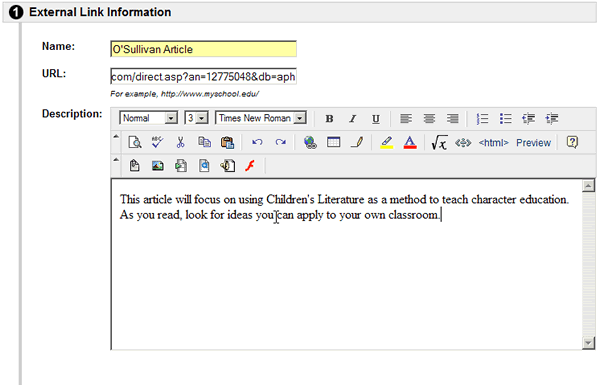
Notice that even though the box for the URL is limited, it has the entire string. Don't worry that you can see only the last part.
You do not need to do anything in sections 2 and 3 of the form, but you do need to go to the bottom of the screen and click the Submit button. You will receive a Content Receipt notice on the screen that it has been created. This is the receipt from the example above:
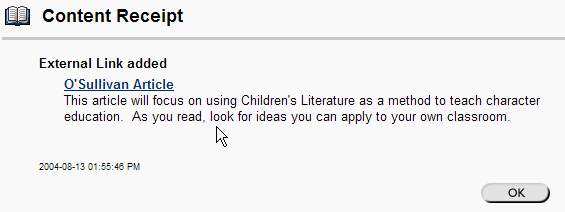
Click OK. Now go into the course to try out your new link to the article. Here is what it would look like within your course on the Assignments page:
