What you have experienced so far in this teaching online tutorial has been a form of lecture using text on a page. This is but one method of providing a lecture.
Many of you use PowerPoint to present materials as part of the lecture method. There are several methods used in these online classes to provide PowerPoint materials to the students. The first method is simply posting the PowerPoint slides as a link on the page. Generally they are put into HTML format so the viewing is not dependent on having PowerPoint on on the viewing computer. Click HERE to see an example of how this looks.
When the PowerPoint did not speak for itself, and annotation was necessary to bring home the message, the notes area of PowerPoint has been utilized to provide this text. Click HERE to see an example. One option that is available, that we currently have not utilized, is to record voice over the PowerPoint as a method of narrating the slides.
A third method of viewing PowerPoint is to create PDF files from the presentation. These are easy for a student to view if they have the free utility Adobe Acrobat. Click HERE to see an example of how this would look.
The fourth method of viewing PowerPoint that has been employed is through a streaming application called Tegrity. The PowerPoint as well as a "talking head" are seen on the screen. Click HERE to see an example of how this works. If this is the first time you have visited a Tegrity site, you will be asked to download a small applet. When you are asked if you want to continue loading this applet, click yes. Tergrity is very user-friendly. The page can be linked to from within virtually any HTML page, and embedded into Blackboard or WebCT.
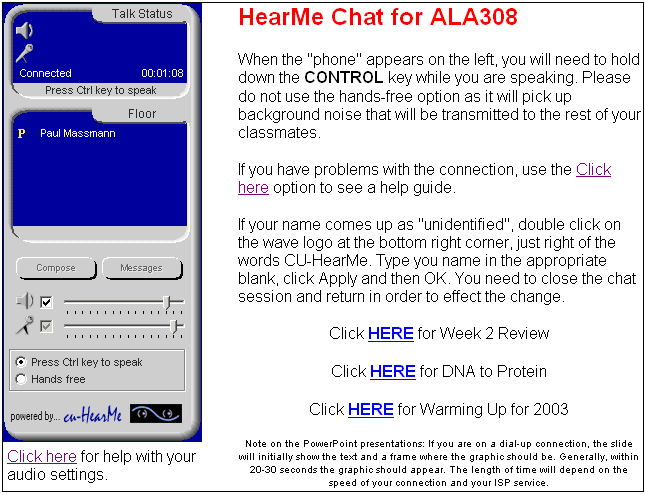
Another lecture-type delivery method that has proven quite effective is Voice over IP (VoIP) technology. Concordia uses HearMe as the client for this application. It is a conference call over the Internet. You are talking live to your students. From the page you can link to additional web sites and PowerPoint for use during the instruction process. This is the only tool we use that would be classified as synchronous, requiring all the students to be present at the same time for the lesson. Below you see an example of what a page using HearMe and PowerPoint would look like.
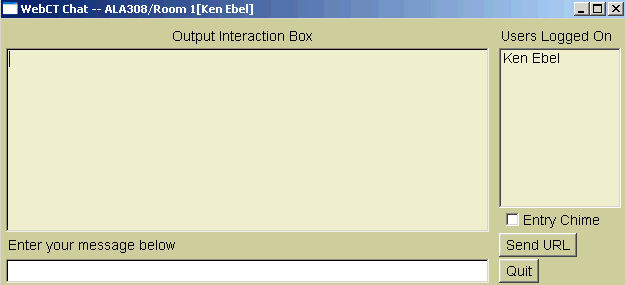
In addition, typed chat is also available for use in the instructional setting. This uses a client similar to instant messaging to communicate synchronously with the students in the class. The image below is an example of how the interface would look to the student and the instructor.