|
1. |
|
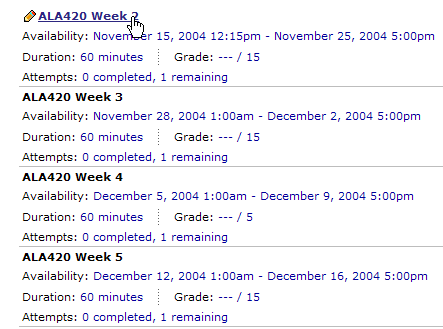
| 2. Once you click on the icon, you will see a list similar to the one at the right. Click on the quiz title (the underlined link with a pencil icon in front of it) you wish to take. This will start the process. Before you click on it, look at the three pieces of information below the link.
|
 |
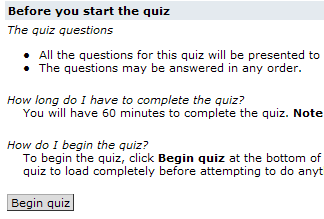
3. Please read through the page of instruction before you click on the Begin quiz button. When you are finished reading, click on the Begin quiz button. NOTE: The quiz opens in a separate window. If you have a pop-up blocker running, the quiz will not open. Disable the blocker and then take the quiz. |
 |
| 4. You should see you name at the top of the page. DO NOT click the Finish button now otherwise you will exit your attempt without answering the questions, and not be allowed to retake the quiz. | 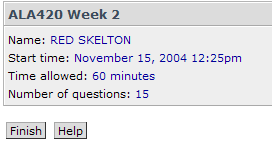 |
| 5. After you make your selection of the correct answer to the question by clicking the radio button in front of it, click on the Save answer button. This will record your answer. | 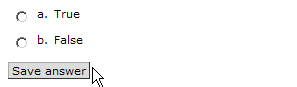 |
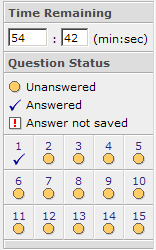
6. On the page you will see a Question Status box. If the blue checkmark is present, you have selected a radio button answer and clicked on the Save answer button. If there is a red exclamation point, it means you have selected a radio button answer but have not yet clicked the Save answer button, so the answer is not saved. The cream circles indicate questions not yet attempted. As you can see, you do not have to answer them in order, you can return to questions you skip, etc. When you are finished with the quiz, there should be blue check marks under each of the numbers. This is a way of making sure you didn't accidentally skip a question and forget to go back. |
Please note the program will keep track of your time remaining at the top of the status information. |
| 7. Once you are sure you have answered everything, and only then, click the Finish button either at the top or the bottom of the quiz. The program will immediately give you feedback as to your score. | |
 To
access the Quiz section, click on the Quizzes icon on the Home Page.
To
access the Quiz section, click on the Quizzes icon on the Home Page.