The email system within WebCT is a closed system. It does not connect to any outside email clients, and can not be forwarded to your regular email account. You need to be in WebCT to read and send WebCT email.
While initially this may sound like a disadvantage, it really isn't. Because it is all kept within WebCT, there is no chance that you will accidentally delete it from your regular email because you did not immediately recognize the sender's name, etc.
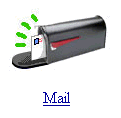 |
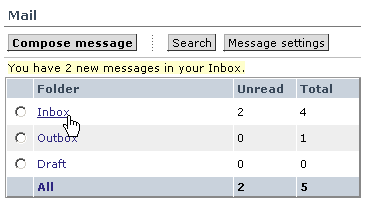
The WebCT email system works very much the same as any web based system. Under Communication Tools, you will find an icon for Mail. As the icon on the left shows, there are green lines coming out of the mailbox. This is an indicator that you have new mail. If the green bars are missing, you do not have any new mail. Click on the icon to enter the mail system. |
(Return to Top)
Once you have clicked on a message Subject to open it, you may want to respond to the message. Scroll to the bottom of the message. You will see the following information:

From within the message you are reading, you will have the option to forward, reply, quote, or download. Let's take a look at each of these options.
- Reply will bring up an email form already addressed to the sender. Nothing will be in the message area.
- Forward will allow you to send this message on to someone else in your course.
- Quote will also bring up an email form addressed to the sender. The original message will be in the message area. You can place your cursor in the message or at the top of the message to type in your reply. This is the preferred way of responding, since it keeps the flow of the topic together in one message.
- Download will allow you to save the message on your hard drive as a text file.
- Close will simply close the current message.
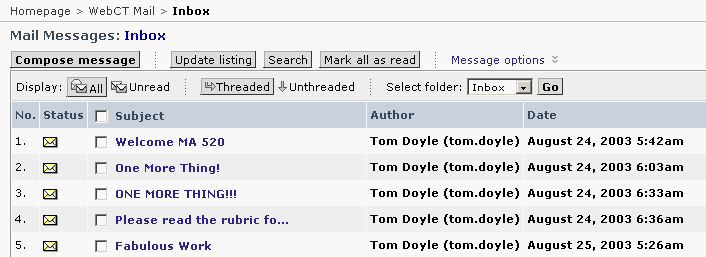
If you want to start from scratch at composing a new message, go to the page where all the messages are listed by subject, as pictured below:
If you click
on  , the
following form will appear:
, the
following form will appear:
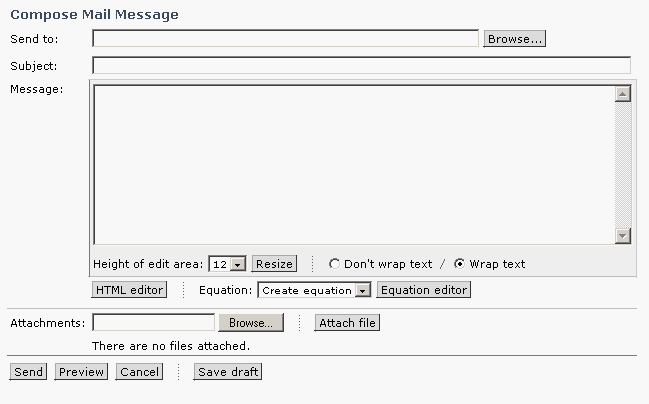
Other than the Send To blank, all other functions are the same as any web based email system. For the Send To, click on the Browse button. This will bring up a list of the students in your class as well as your instructor. Highlight the one you want to send the message to and click Done.
You may find a need to send the same message to more than one student. Here is the procedure:
- If you want to send the message to the entire class, click the first name on the list, hold down the shift key, and click the last name on the list. This will select everyone.
- If you want to select several names, but not everyone, click the first name you want, hold down the control key, and click on the other names.
In any of these scenarios described,
clicking Done will put the names in the Send
To line. When you are finished writing the message, click Send
to post to the person or persons.
(Return to Top)

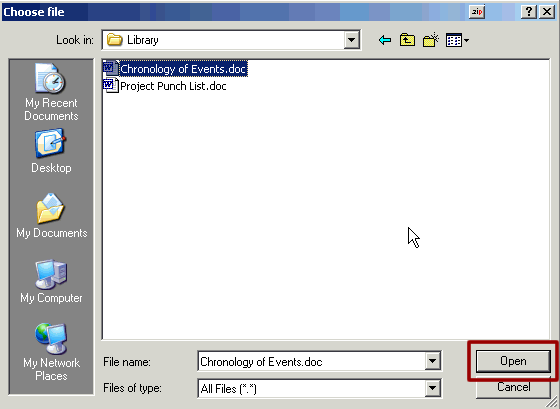
Now you will see that the path to this document has been inserted into the blank in front of the word Browse. Now click on Attach file to actually attach it to the email. If it is just in the box in front of browse, and you don't click Attach file, it will not be sent with the email.

To check that it is really attached, you will see it listed under attachments as shown below.

If you wanted
to remove it, click the box in front of the name of the document and then
click on Remove attachments.
(Return to Top)

If there is an attachment to an email, you can recognize it by the paperclip in front of the message. Open the message as usual by clicking on the subject of the message.
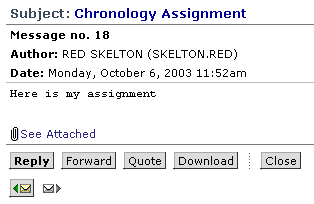
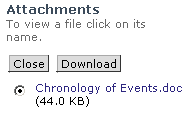
Click the radio button so the dot appears in the circle, as seen in the illustration to the left. Then click Download. You will be given the option to Open or Save the document. Depending on your ISP, you may or may not be able to open the document directly. Some message types are not supported by all providers. If there is more than one attachment, you will need to download each one individually.
The best option is to click Save so that the document is saved to your hard drive. Select a name and location for the document and save it. You can then open it from your hard drive using the same program in which it was created.