
Creating a Bibliography or Reference List

Click on the Bibliography button
on the menu bar in RefWorks.
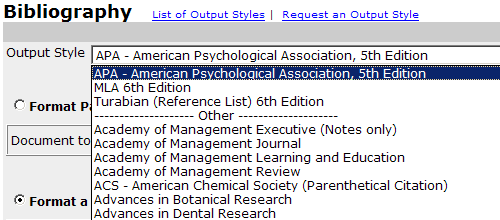
Select the Output Format from the drop down menu. If you are not sure of the style you are to use, consult with your instructor.
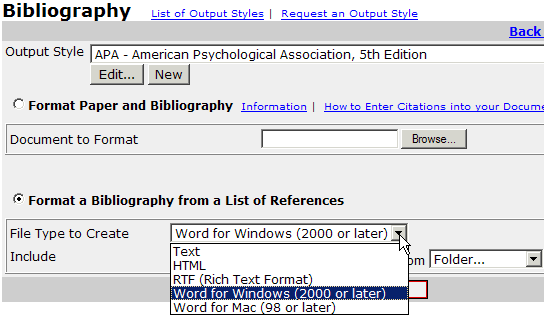
Under File Type to Create, select Word for Windows.
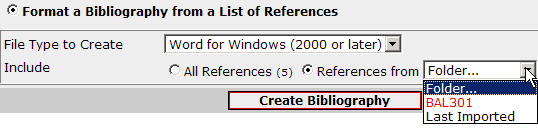
You must specify a source for the references if you have been keeping them in folders. BAL301 was a file folder created for this tutorial. Yours will have other names. There is a great advantage in using folders to keep different topics organized. Directions for creating and using them are on the introduction (home) page to this tutorial.

Click on Create Bibliography after you have set your options.
When the Bibliography is created, you will have an option to Open or Save it. If the option does not appear, you most likely have a pop-up blocker keeping it from showing.
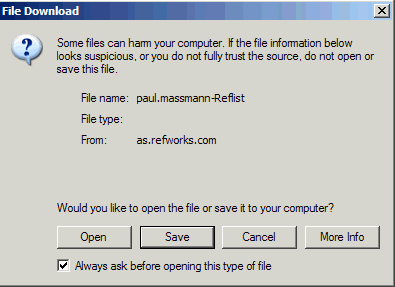
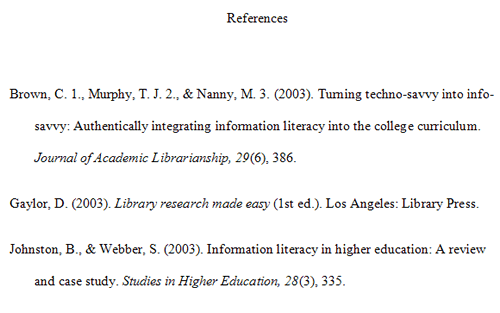
Select Save, and save it to your hard drive. Once saved, you can open it in Word, select the entire bibliography, copy it, and paste it into your paper. Below is a sample of what a finished APA Reference List will look like:
The second option to retrieve the reference list is to email it to yourself.
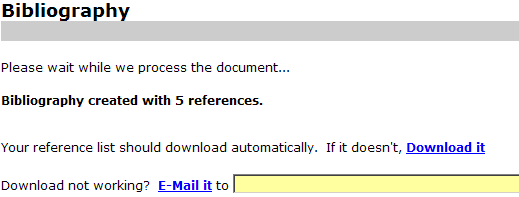
Type your email address into the box provided, and then click E-mail it. It will come as an attachment in RTF. SAVE the attachment to your hard drive. Open Word. Then from within Word, open the RTF file. Then save it as Word rather than RTF. Once you have this Word file, you can either merge it into your paper, or use copy/paste to insert it.