
From the library web site, use EBSCOhost and find the relevant articles to your subject or topic. (If you are not familiar with EBSCOhost, you will find a tutorial for it on the CELT site.)
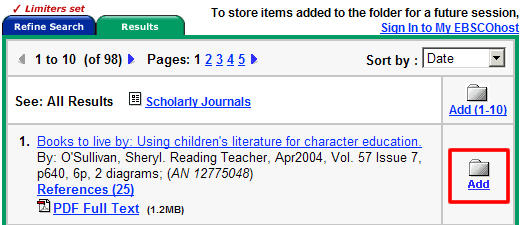
From the results page, add the articles you want to the Folder
by clicking the Add button (see red box
above).

You will know that the item is in the folder as the link will change to
say Folder has items. If you go click on this link you
can review the items you have placed in the folder. To resume searching,
do NOT use the browser back arrow. There is a back arrow within the page
that will return to your search. For another way to view the folder, go
to step 2 below.
To see the contents of the folder and get the items ready to export to RefWorks, click on the View Folder link at the top of the page.

Once you click on the Folder has items link, you will see the following screen:

Click the Save to Disk link.
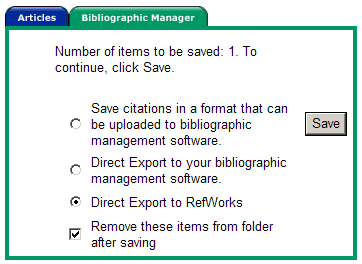
The default view is Articles. In order to see the options above, click on the Bibliographic Manager Tab. The active tab will be GREEN. If you are in the Articles tab, you will see six options rather than the screen above, and this process will not work. Select Direct Export to RefWorks as indicated above. Click on the Save button. If you are not already logged into RefWorks, you will be asked to do so after you click the Save button.
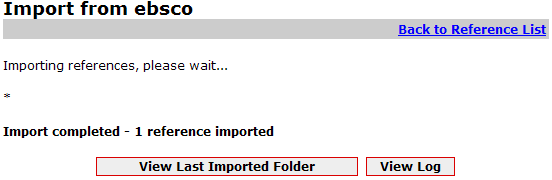
You will see a confirmation screen similar to the one below when the download is complete.